



How to Build a Custom GPT in Under 15 Minutes (No Coding Required)
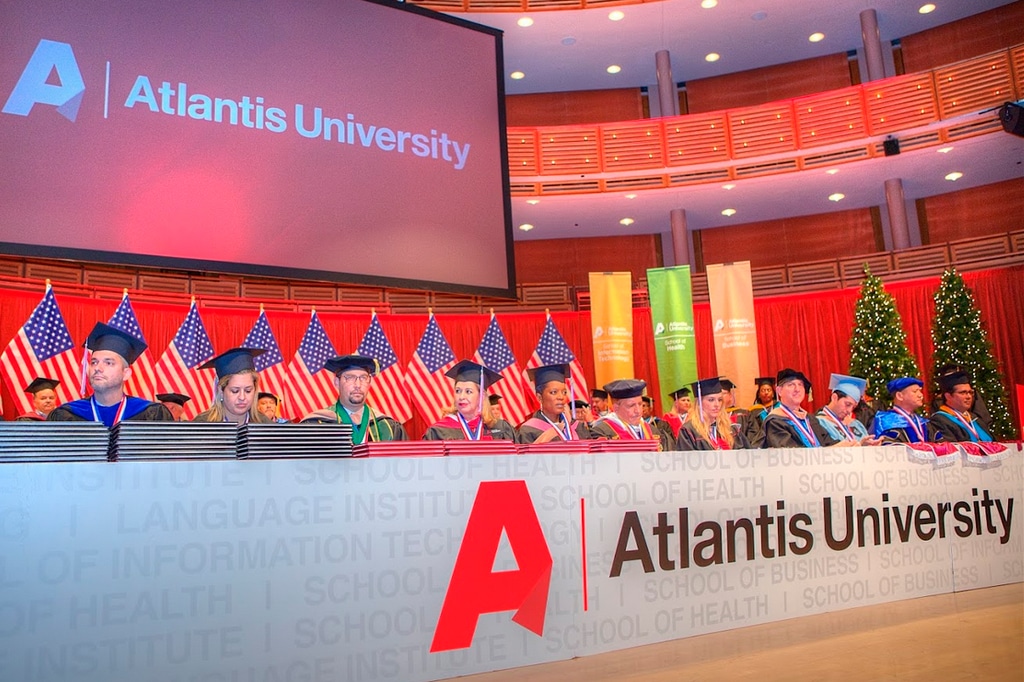
Learning how to build a custom GPT is the fastest upgrade available to most professionals right now. Nearly everyone uses ChatGPT; almost nobody has built a version trained on their own task. The difference between the two is the difference between a general-purpose tool and a specialist assistant that already knows your business. John Castaño demonstrated the entire build live at the Atlantis University Business Summit 2026, and it took less time than a coffee break.
What a custom GPT actually is
A custom GPT is not an autonomous agent. It is an assistant configured with instructions, reference material and selected capabilities for a specific task.
Think of it as a Frankenstein — the analogy used throughout the live demo. You build the body, then you open the head and place a brain inside. That brain is a set of instructions. Feed it a different brain, and it becomes a different specialist: one for sales proposals, one for reports and data analysis, one for content ideas.
The critical distinction: when you use ChatGPT, Claude or Gemini the way most people do, you're starting from zero every time. A custom GPT already knows the task, the structure, the tone, and — if you configure it properly — your company.
Interested in becoming a student?
Look for your passion in our available programs

Step 1 — Open the GPT builder
In ChatGPT, open the GPTs area and the GPT builder. Menu labels and availability can vary by plan and workspace.
To build your own, click Create in the top right.
Creating GPTs requires an eligible plan and, in a managed workspace, permission from the administrator. Check the current options available in your account.
Step 2 — Name and describe it
Two straightforward fields:
- Name — whatever you'll call it. In the live demo: Amber.
- Description — a short line explaining what it does. "This GPT helps people create better sales proposals."
Step 3 — Write the instructions (use AI to do it)
This is the field that determines everything, and here's the technique that makes it easy.
Don't write the instructions yourself. Ask AI to write them for you.
Open a second ChatGPT tab. Take a screenshot of the GPT builder screen, paste it in, and ask directly:
"Help me create the prompt for my personal assistant that helps people build sales proposals. Be sure to include a specific structure. The tone should be warm."
That last detail matters — specify the personality you want, because that's what you'll get.
The output will be a complete, professionally structured instruction set. In the demo it returned behavior rules, a default proposal structure (title, introduction, client context, main objective, proposed solution, scope of work, benefits and expected results, methodology, timeline, investment, why choose us, next steps) and tone guidelines.
Keep the instruction set concise and within the limit shown in the editor. If it runs long, ask for a shorter version and check that the essential rules remain.
Copy the result, paste it into the instructions field, and you're done.
The point worth pausing on: you used AI to create an AI. You didn't write the prompt — you described what you wanted, clearly, in plain language.
Step 4 — Add conversation starters
These are default opening messages that appear when someone opens your GPT — "I need help creating a B2B proposal," for example. Small touch, meaningful difference: they get the user straight into the useful part of the conversation.
Step 5 — Upload a knowledge base (the step most people skip)
Back to the Frankenstein analogy: the instructions are one brain, but uploaded files are a second one.
If you're building an assistant for your own company, upload your mission, vision, corporate values, service descriptions, past proposals, pricing structures — whatever defines how you actually work. A fast-food business would upload its menus and operating standards; a university would upload its program catalog.
Without this step, you have a competent generic assistant. With it, you have one that knows your business.
Step 6 — Configure capabilities, add an image, publish
Enable only the capabilities the assistant needs for its task, such as web search or data analysis.
Add a logo or image. Not mandatory — but it makes the assistant feel custom, and that matters more than it should.
Choose the available sharing option that matches your intended audience, then save or create the GPT. Organization sharing depends on workspace settings.
How to tell whether you built it correctly
Here's the diagnostic from the demo, and it's a good one.
Open your new GPT and make a request. A well-built assistant will respond with questions: Who is the client? What product or service are you offering? What problem does it solve? What outcome do they want? What's included? What's the price? What tone do you want?
If the assistant lacks essential information but produces a finished proposal anyway, refine its instructions. It should ask for missing details rather than invent facts about your client or services.
Relevant questions are one useful check. Also test the assistant's accuracy, source use and handling of information it does not know.
Frequently asked questions
Do I need a paid ChatGPT plan to build a custom GPT?
You need a plan with GPT creation enabled. Availability and workspace permissions can change; check the current features in your account.
How is a custom GPT different from a Claude Project?
Both can organize instructions and reference material around a task. Their features and sharing controls differ, so choose the setup that fits your workflow rather than treating one as a required next level.
Can I do this in Gemini?
Yes. Gemini's equivalent feature is called Gems.
Can I share a custom GPT with my team?
Sharing options depend on your plan and workspace policies. Review the available audience settings before publishing.
What else can I build besides sales assistants?
Anything repeatable: report generators, content-idea assistants, onboarding helpers, meeting-prep tools. Students in the demo mentioned building personal assistants for fitness and nutrition routines grounded in a curated knowledge base. The limit is genuinely your creativity.
Conclusion
Knowing how to build a custom GPT shifts you from consuming AI to configuring it. It takes fifteen minutes, requires no technical background, and produces something your competitors almost certainly don't have: an assistant that already knows the task.
The core insight to keep: you can use AI to build your AI. Ask clearly for what you want, and you'll get it.
Knowledge is power only when you use it. Pick one repetitive task you handle every week and build an assistant for it today.
The STEM MBA at Atlantis University develops this fluency systematically — AI applications, business intelligence and analytics — in a program built for working professionals.
Sources and resources
Become a student at Atlantis University
Related Posts

Atlantis University and OYC Miami Formalize Partnership to Expand Educational Access and Create Pathways to Generational Success

AI Fluency for Business Professionals: Why Working Harder Stopped Working

The Three AI Maturity Levels — And Why Most People Never Leave the First One

How to Design Instagram Carousels with AI — Without a Designer